How QR Code Visitor Check-In Works, Step by Step
Published on 10/18/2026 • Updated on 10/23/2026
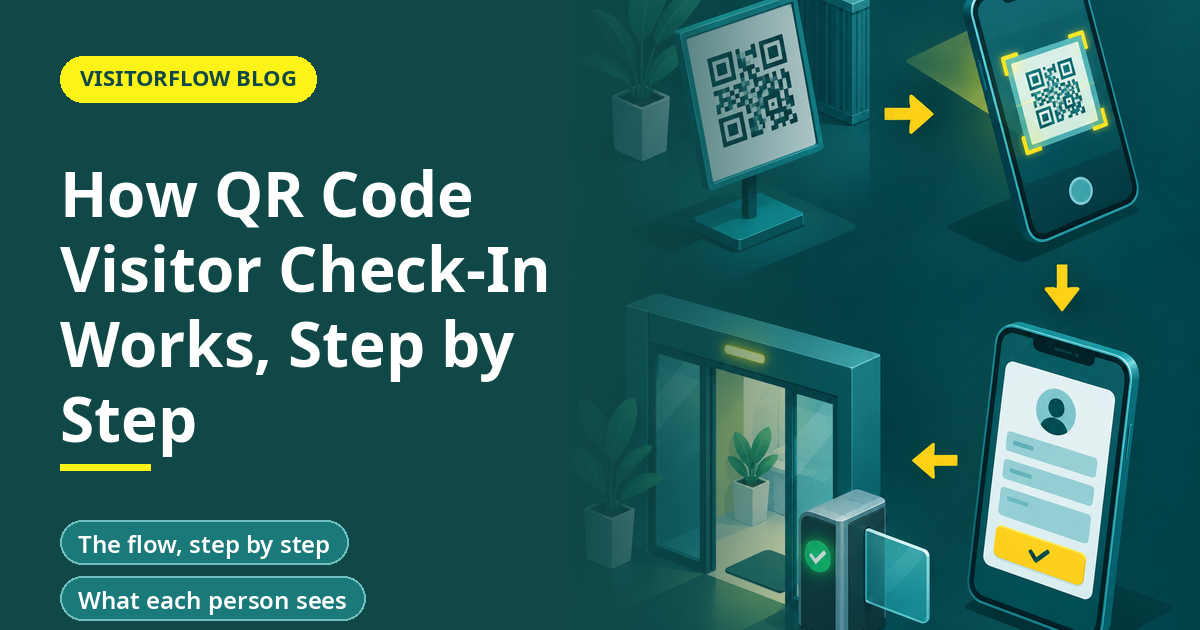
A delivery executive reaches a gate with a parcel and a phone. A candidate arrives for an interview ten minutes early. A vendor brings two colleagues. In a paper system, each of them waits for the guard to write their details. With a QR code, each of them scans a poster at the gate, fills a short form and waits for an approval, while the guard watches a screen.
This guide walks through that flow step by step. It explains what the QR code actually does, what the visitor, host and guard each see, what you need to set up before you print a poster, and the problems that show up in the first week.
On this page
What a visitor QR code does
A visitor QR code is a printed or on-screen code that opens a web form when scanned with a phone camera. It carries a web address, not the visitor's data. The form is hosted by the visitor management system, and what the visitor types goes straight into the visit record.
There are two common uses. A gate QR is a poster or sign at the entrance that every visitor scans on arrival. A pre-registration QR is sent by the host in advance, so the visitor shows it at the gate and skips the form.
Key idea: The QR code is only a door to a form. The value comes from what happens after the scan: approval, notification and a searchable record.
VisitorFlow describes this flow on its product page: visitors scan a QR code and quickly fill a digital entry form, capturing essential details and, if needed, a photo or a signature. Hosts then receive a notification by email, WhatsApp or SMS.
The flow, step by step
Step 01
The visitor scans the gate QR
The phone camera opens the web form. There is no app to install, because the form runs in the phone browser. Check this with any vendor you evaluate, since some systems need an app.
Step 02
The visitor fills the form
Name, mobile number, company, host and purpose are the usual fields. Some sites add a photo or a signature. Keep the form short, because every extra field adds seconds and questions.
Step 03
The host receives an alert
The host is told by email, WhatsApp or SMS that a visitor is waiting. The message shows who it is and why they came.
Step 04
The host approves or rejects
A single tap lets the host approve or reject. The guard sees the answer on the dashboard at once, without a phone call.
Step 05
The guard lets the visitor in
The guard checks the screen, confirms the visitor matches the record, issues a pass if the site uses one, and the entry time is stored.
Step 06
Check-out closes the visit
When the meeting ends, the host or guard marks the visit complete. The record now has entry and exit times for later reports.
The flow takes seconds when the host responds quickly. The step that decides the real time is the host's approval, so hosts need a clear instruction to respond from their phone.
See QR check-in at your own gate
VisitorFlow uses a QR code, a web form and instant host alerts. No face scanners or special terminals are needed.
Explore Visitor Management SoftwareWhat each person sees
| Person | What they do | What they see |
|---|---|---|
| Visitor | Scans, fills the form, waits | A confirmation and, if used, a pass |
| Host | Approves or rejects, ends the meeting | A notification with visitor name and purpose |
| Guard | Checks the screen, admits the visitor | A live list of expected, waiting and current visitors |
| Admin head | Searches and exports | Visit history, filters and Excel-based reports |
The table shows why QR check-in changes the guard's job. The guard stops being a data entry operator and becomes a verifier: does the person at the gate match the approved record?
What to set up before you print the poster
Printing the code is the last step, not the first. The work that decides success is upstream.
- The visitor form: fields, their order and the privacy notice shown above the submit button.
- The host list: every employee who receives visitors, with a working mobile number or email.
- The approval rules: time limit for a host reply and the backup approver.
- The gate device: a phone or computer at the guard post to see the dashboard.
- Placement: the poster at phone height, well lit, where visitors queue.
⚠️ Compliance note: Visitor names, mobile numbers and photos are personal data. India's DPDP Rules, 2025 expect a notice that describes the data collected and the purpose (Rule 3). Show a short notice on the form and confirm its wording with your legal adviser.
Test the poster with five people who have never seen it. If any of them hesitates, change the wording or the placement.
QR check-in compared with paper and kiosks
| Point | Paper register | Kiosk | QR on own phone |
|---|---|---|---|
| Gate hardware | None | Tablet or kiosk | None, only a screen for the guard |
| Who types the data | The guard | The visitor | The visitor |
| Queue at peak | Long | Limited by kiosk count | Parallel, one phone per visitor |
| Host alert | Phone call | Depends on setup | Email, WhatsApp or SMS |
| Cost of change | Low | Hardware and upkeep | Printing a poster |
A kiosk gives the visitor a fixed screen, which suits large lobbies with a receptionist. QR uses the phones people already carry, which suits busy gates and sites with several entrances. VisitorFlow states that it needs no face scanners or special terminals.
Security and privacy checks for a QR flow
A QR poster is public, so treat the form behind it as a public page. Anyone can scan it, including people who are not at your gate. Three checks keep it safe.
- The form should only submit a visit request. It must never show earlier visitors or any list of names.
- A request is not entry. The host or the guard must approve it before the visitor passes the gate.
- The guard should compare the person with the record, for example by name and host, before admitting them.
Replace the poster if it is damaged or defaced, and check that nobody has stuck another code over it. Keep the printed address short and tied to your own domain or your vendor's page, so visitors can see where they are going. Finally, tell visitors on the form how long their details stay in the system and who can see them. That one line answers most privacy questions at the gate.
Problems you will meet in the first week
No network at the gate
A basement gate or remote plant may have weak signal. Test on each network and keep a backup form on the guard device.
Hosts who do not respond
The queue grows when approval waits. Set a time limit and a backup approver.
Visitors without smartphones
Keep a guard-assisted path. The guard can enter the details on the visitor's behalf using the same form.
Treat the first week as a test. Note every time the guard overrides the system, and ask why. Each override points to a rule that needs a fix or a host who needs a reminder.
How to measure whether it works
Pick three numbers before the pilot and compare them with your paper baseline: seconds from arrival to entry, share of visits where the host was alerted before the visitor reached the lobby, and time to find one visit from last month. Product pages quote check-in times such as under 30 seconds. Treat any such figure as a vendor claim until your own gate confirms it.
Reader Q&A
How does QR code visitor check-in work?
The visitor scans a code at the gate, fills a web form on their phone, the host approves from a notification, and the guard admits the visitor. Check-out closes the record.
Do visitors need to install an app?
Not for a web-form QR flow. The code opens in the phone browser. Confirm this with any vendor, because some products need an app.
Is QR check-in safe for visitor data?
It depends on the system. Look for role-based access, masked phone numbers and a stated retention period. Under the DPDP Rules, 2025, you also need a clear notice at collection.
What if a visitor has no smartphone?
The guard enters the details on the visitor's behalf using the same form, so the record stays complete.
Can I pre-register visitors with a QR code?
Yes, in most systems the host invites the visitor in advance and the visitor shows the code at the gate.
How long does QR check-in take?
VisitorFlow quotes under 30 seconds on its product page. Measure your own gate in a pilot, because host response time drives the real figure.
Bottom line
QR check-in moves data entry from the guard to the visitor and puts approval on the host's phone. The guard keeps the verification job, which is the part that needs a human.
Start with a short form, a clear notice, a named backup approver and one gate. Measure time per entry for two weeks and decide from the numbers.
Try QR check-in at one gate
VisitorFlow runs visitor, material gate pass, courier, maintenance and incident workflows on one cloud platform.
Explore Visitor Management Software See Material Gate Pass Software Book a Free Demo
Aadeshwar Modi is a marketing technical content writer who loves writing on technology and AI topics.
- From Register Book to Software: Digitizing the Gate Pass
- Inter-Branch Transfer Gate Pass: Keep Stock True Across Units
- Material Inward Gate Pass: Link the Gate with the GRN
- E-Way Bill vs Gate Pass: What Each Document Does
- Gate Pass System for Engineering and Fabrication Workshops
- Gate Pass Software for Pharma and Chemical Plants
- Office Facility Maintenance Checklist: Daily, Weekly, Monthly
- Breakdown Maintenance Log: Record, Analyze, Reduce
- Maintenance KPIs and Dashboards: What to Review Weekly
- AMC Management Software: Contracts, Renewals and Vendor SLAs